Samsung EdgeTouch
Screenshots
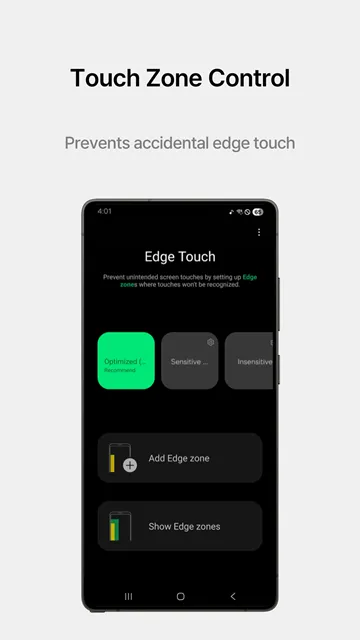
Samsung EdgeTouch offers a smart solution for smartphone users who struggle with accidental display activations. This practical tool resolves the common issue of erratic inputs on curved displays. Consequently, users can hold their devices comfortably without triggering unwanted applications or menus during daily tasks.
The utility integrates smoothly into the mobile system architecture to modify the active boundaries of your display panel. In other words, you gain complete authority over which specific parts of the panel respond to your fingers. Therefore, mobile navigation becomes much more predictable during intense single-handed typing or browsing sessions.
Understanding the Purpose of Samsung EdgeTouch
Many modern handheld devices feature gorgeous wrap-around displays with minimal bezels to maximize visual immersion. However, these elegant design choices often lead to frequent unintended screen interactions along the glass margins. Samsung EdgeTouch addresses this specific design flaw by allowing users to establish custom dead zones along the perimeter.
Users frequently encounter frustrating problems while holding their devices in one hand or during landscape gaming sessions. For instance, the flesh of your palm might hit the back button or open a menu unexpectedly. This tool provides the necessary tactile options to prevent these annoying operational disruptions instantly.
Why You Need Accidental Touch Protection
Accidental interactions often disrupt productivity when you attempt to read digital books or compose lengthy text documents. Furthermore, a stray palm press can accidentally pause an active video player or change a musical track. Implementing robust touch rejection ensures that the system registers only your highly intentional physical finger commands.
Gamers also experience severe frustrations when their tight grip triggers unintentional game buttons or character movements. In short, a single misclick can ruin your competitive performance within fractions of a second. Therefore, blocking specific screen perimeters creates a stable environment for entertainment and workspace productivity.
Key Features of Samsung EdgeTouch App for Android
This utility contains several individual sub-tools designed to customize display touch zones with extreme efficiency. Most importantly, it divides the screen margins into distinct horizontal and vertical segments based on your gripping behavior. Consequently, you can tailor your device to match your personal physical hand structure perfectly.
The advanced options allow for fine pixel adjustments that standard system menus simply cannot provide to owners. Above all, you can visually inspect your structural modifications through an intuitive interactive graphic visualization interface. Let us explore the core individual functionalities that this custom system package provides to users.
Customized Blocked Zones
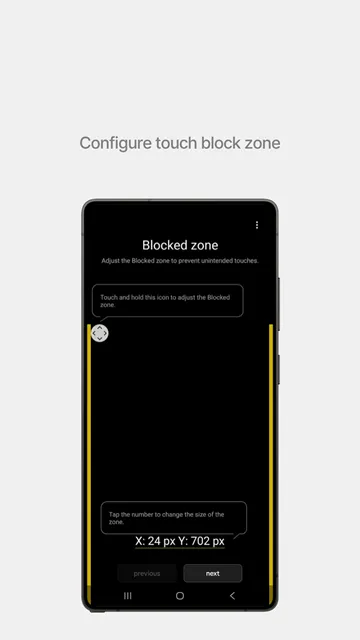
The blocked zone acts as an absolute protective shield against any incoming touch signals on the panel. Firstly, you can adjust the exact pixel width of these specific zones on both screen sides. As a result, the designated area becomes completely blind to accidental finger touches.
This specific feature works beautifully for the extreme curved glass sections that track accidental skin contact. Moreover, you can change the vertical length of these zones to avoid clipping vital system navigation shortcuts. This level of precise control guarantees a highly optimized touch experience during daily activities.
Adjustable Grip Zones
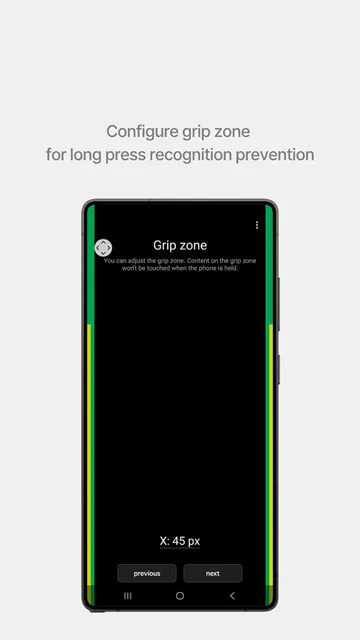
Grip zones recognize when you are firmly holding your hardware container with your palm while typing. In other words, the application detects broad skin pressure versus a highly deliberate single finger tap. Subsequently, it ignores the constant pressure from your hand while allowing normal scrolling actions to continue.
You can extend this specialized safety zone higher or lower along the side metal frames. In addition, you can set separate custom dimensions for the left and right display borders. This layout flexibility accommodates left-handed and right-handed individuals with equal efficiency.
Separate Landscape Layouts
Display touch behavior alters significantly when you rotate your smartphone to watch high-definition video media. Consequently, a portrait orientation border setup might not function effectively in a wider horizontal view. This tool resolves the issue by offering a fully independent landscape configuration profile.
You can choose to widen the protective borders specifically for watching films or playing action games. After that, the system saves your preferences and applies them automatically upon physical screen rotation. This automated layout switch completely removes the need for manual tweaking every single time.
Real-Time Visual Guide
Adjusting abstract border pixels can feel incredibly difficult without any immediate physical feedback on the glass. Fortunately, this utility displays a colorful overlay to illustrate your current margin modifications quite clearly. To clarify, you see bright green and yellow bars representing your active protective borders.
These helpful alignment guidelines disappear as soon as you finish the entire custom calibration process. Meanwhile, you can test the sensitivity level live before saving your new operational display template. This immediate visual confirmation prevents setup errors during the initial zone design phase.
Multiple Preset Templates
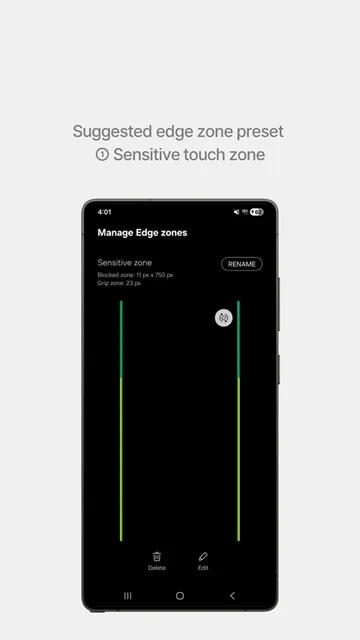
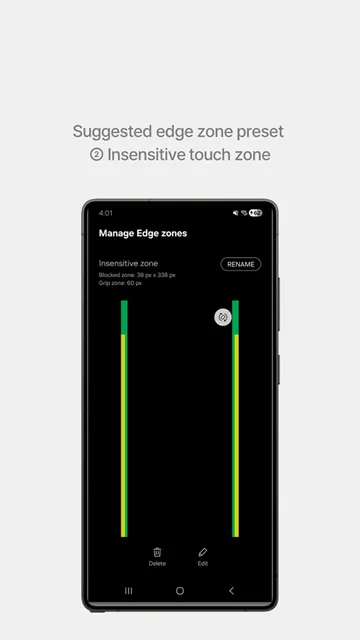
Not every smartphone owner wants to spend time configuring mathematical display pixels manually from scratch. Therefore, the developers included three distinct pre-made configurations for instant activation within the main menu. These templates include balanced, sensitive, and insensitive options for rapid user deployment.
The standard profile provides a balanced configuration suitable for the average human hand structure. On the other hand, the insensitive choice heavily expands the dead zones for maximum palm protection. You can select any pre-made template with a single tap of your finger.
In-Depth Customization Profiles
Advanced users can construct multiple personal interaction profiles to accommodate different situations. Firstly, you can establish a highly restrictive profile intended exclusively for intense mobile gaming sessions. Secondly, you can switch back to a milder configuration layout during standard reading tasks.
Subsequently, the system permits you to toggle between these saved profiles within the settings interface. In addition, you can name each profile individually to keep your layout database perfectly organized. This structured approach lets you swap profiles rapidly depending on your active application environment.
Advanced Touch Rejection Customization
Experienced users can delve much deeper into advanced settings to refine their operational layout. For example, you can alter the color transparency of the test zones during the adjustment phase. This option ensures that you can see your underlying user interface while making microscopic modifications.
In addition, the system allows you to exclude certain specialized applications from touch rejection rules completely. That is to say, creative drawing applications can retain full edge-to-edge touch sensitivity when active. The tool dynamically enables or disables your profiles based on the active foreground application.
How to Download and Install Samsung EdgeTouch APK
Acquiring this custom utility requires a few simple physical actions to ensure proper deployment on your device. First, look for a reputable storage repository that hosts the genuine installation files online. Click the download button to save the package directly to your internal file storage directory. After that, follow the sequential list below to complete the setup process cleanly without errors.
- Open your native file manager application and locate the downloaded file package.
- Select the installer package to initiate the system configuration sequence immediately.
- Grant the required installation permissions if your system prompts you for security verification.
- Wait patiently for the progress indicator bar to reach one hundred percent completion.
- Launch the application from your main app drawer to begin your initial configuration.
Samsung EdgeTouch Practical Display Tips and Tricks
- Test in Landscape Mode: Always check your custom settings while holding the phone horizontally during mobile gaming sessions.
- Gradual Thickness Adjustments: Increase the dead zone pixel thickness slowly over several days to find your perfect balance.
- Use Bright Overlay Colors: Set the visual configuration guide to a highly visible red or blue color initially.
- Exclude Typing Apps: Disable edge protection for keyboard apps to maintain easy access to corner punctuation symbols.
- Create Backup Profiles: Note down your preferred pixel coordinates before updating your device operating system version.
- Combine with System Themes: Match the overlay colors with your wallpaper to make configuration easier on your eyes.
Conclusion
In conclusion, managing a modern edge-to-edge display no longer requires constant grip adjustments or physical hand discomfort. Samsung EdgeTouch provides the necessary infrastructure to eliminate frustrating accidental inputs with complete and absolute precision. Consequently, users can experience the aesthetic beauty of curved glass without sacrificing daily mobile usability.
By setting tailored grip and block zones, you regain absolute command over your interactive screen surfaces. Moreover, the inclusion of automated landscape switching ensures smooth and seamless performance across all mobile activities. Download this exceptional tool today to elevate your touch precision to an entirely new level.